
Detect Frozen Frames in Flutter Apps (Android)
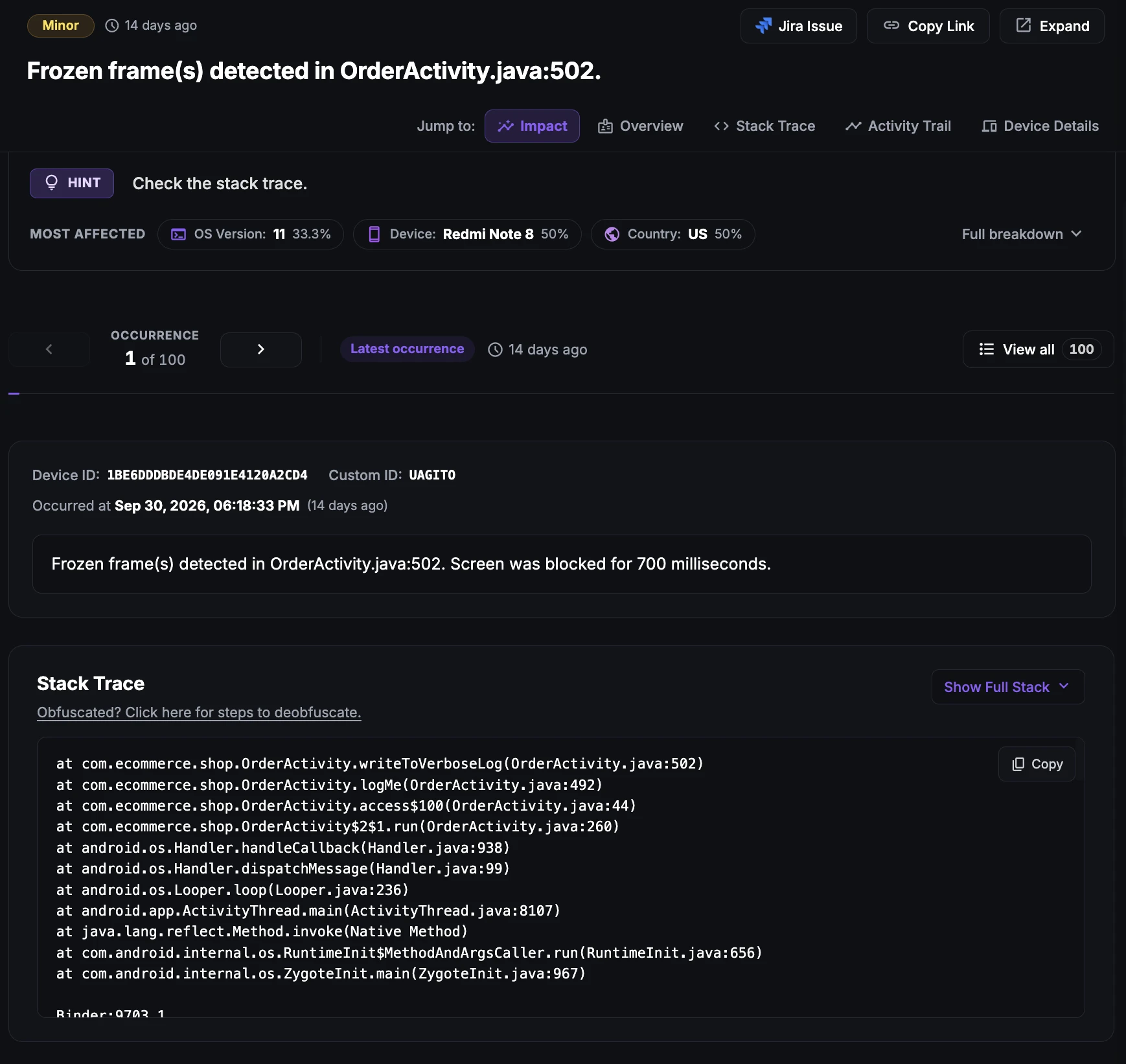
Frozen Frames in Flutter apps (Android)
Frozen Frames in Flutter apps, particularly on Android, refer to the scenario where the frames of the application become unresponsive or cease to update for a duration of 700 milliseconds or more.
In the context of application performance, a frame is the individual image that the app displays at a particular point in time. In a smoothly running app, a new frame is generated and displayed every 16 milliseconds or so to provide a fluid visual experience. This is equivalent to a frame rate of about 60 frames per second, which is the standard for modern digital devices.
However, when an application encounters a Frozen Frame situation, it fails to refresh the screen at the expected rate. This results in the application's User Interface (UI) appearing stuck or frozen. It creates a poor user experience, as the user is unable to interact with the app. This scenario is often perceived as if the application is not responding to touch or any other form of user input.
Why does this happen?
Frozen Frames in Flutter apps on Android can be triggered by various situations that significantly load the main thread of the application. Common causes include:
Complex computations: Performing complex calculations or data processing on the main thread, meaning the UI cannot be updated as swiftly as necessary.
Heavy graphical rendering: Trying to render heavy graphical elements, often referred to as "drawables" in Android, can exert a considerable burden on the main thread. These drawables could be high-resolution images, sophisticated vector graphics, or intricate animations.
Processing large datasets: Sorting large datasets, making heavy synchronous data updates, or performing database operations on the main thread, blocking UI refresh events.
How to fix it using Appxiom
- Analyze stack trace: The issue report provides the stack trace of the UI thread when debugging "Frozen Frames" in Flutter apps (Android). The UI thread's stack trace points to the specific line of code that initiated the problem.
- Offload resources: In order to circumvent such issues, developers can employ various strategies. These may include offloading resource-intensive tasks to a background thread, optimizing the usage of resources, or applying more efficient memory management techniques.
Stop guessing. Start fixing.
Get real-time alerts, exact stack traces, and complete activity trails before these issues impact your revenue.
Related Issues & Failure Guides
Detecting and Fixing ANR (App Not Responding) in Flutter apps (Android)
Diagnose and resolve Application Not Responding (ANR) events in Flutter Android apps. Isolate heavy platform-channel blocking calls on the main thread.
Detecting and fixing App Hangs in Flutter apps (iOS and iPadOS)
Troubleshoot main thread hangs and UI freezes in Flutter iOS apps. Pinpoint platform plugin delays and bridge latency to keep your mobile app responsive.
Detect App Startup Delay - Cold Startup
Accelerate Flutter engine initialization and widget tree startup times. Eliminate cold start launch delays to boost user retention on Android and iOS.
We use cookies to improve your experience.